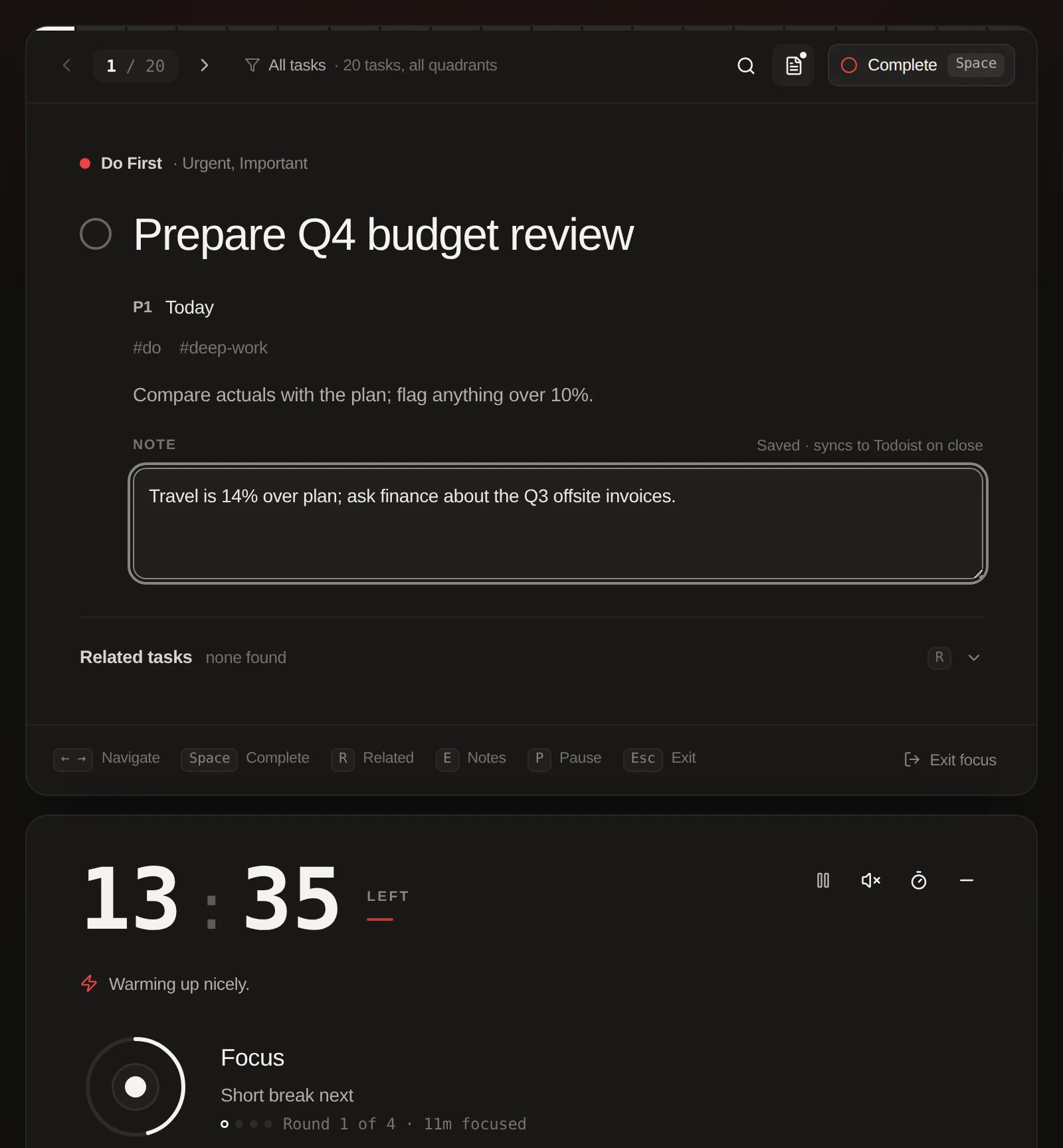
Eisenhower Matrix for Todoist can be run almost entirely from the keyboard: move around the matrix, sort tasks into quadrants with 1–4, complete with Space, and work through a queue in Single Task Focus. In the app, press ? in the Clean view to see the list.
Updated Shortcuts pause while you type
Matrix (Clean view)
Click a row first, or press ↓ to start; a ring shows the highlighted row. On a Mac, ⌘ works wherever Ctrl is listed.
Move around
Keys
What it does
↑↓ or JK
Move within a quadrant; at the end, continue into the quadrant below
←→ or HL
Jump to the quadrant beside
E
Expand the quadrant to full width; E or Esc returns
V
Switch between the Clean and Classic views (works in both)
?
Show or hide the full shortcut list
Esc
Close the expanded quadrant, or clear the highlighted row
Act on the highlighted row
Keys
What it does
Space
Complete the task (with Undo)
1–4
Move to Do First, Schedule, Delegate or Backlog, with Undo. Moves every selected task if the row is selected
Enter
Open the task in Single Task Focus
D
Set the due date
ShiftD
Set the deadline
C
Open the task’s Todoist comments
R or F2
Rename the task (you can also double-click the title)
X
Select or deselect the task
ShiftX
Select a range in the quadrant, from the last task you selected with X to this one
N
Add a new task to this quadrant
Delete or Backspace
Delete the task, with Undo for 6 seconds. A recurring task or a task with subtasks asks first
Mouse
Action
What it does
Ctrl + click
Select tasks (⌘ + click on a Mac), then move them with 1–4 or the bar at the bottom
Click a quadrant header
Fold or unfold the quadrant
Double-click a quadrant header
Expand the quadrant
Double-click a task title
Rename the task
While renaming or adding a task
Keys
What it does
Enter
Save the new name, or add the new task (clicking away also saves a name)
Esc
Cancel: keep the old name, or discard the new task
Categorize
The Categorize sheet steps through tasks that have no quadrant yet. Holding a number key sorts only one task, never the ones after it.
Sorting unsorted tasks
Keys
What it does
1–4
Sort the task into Do First, Schedule, Delegate or Backlog
←
Back to the previous task
→
Skip this task for now
Single Task Focus and the Pomodoro timer
Press Enter on a task to open it in Single Task Focus. These keys take priority over the matrix shortcuts underneath.
In Single Task Focus
Keys
What it does
Space
Complete the task; the next task in the queue slides in
U
Undo the completion (for five seconds)
←→
Previous or next task in the queue
P
Pause or resume; during a break, or when it is over, start the next round
B
Start a break when a round is done, skip a running break, or start the next round
E
Open or close the note (saved to Todoist as a comment when it closes)
R
Show or hide related tasks
/ or ⌘K / CtrlK
Search the tasks in this queue
Esc
Close search, then the note; otherwise exit focus with a session summary
In the search palette
Keys
What it does
↑↓
Move through the results
Enter
Focus the chosen task (the timer keeps running)
Esc
Close search
The key hints are always shown at the bottom of the focus card.
Mobile gestures
On a phone there is no keyboard, so the main actions are gestures. A one-time card in the app teaches the first three.
Touch
Gesture
What it does
Swipe a task right
Complete it
Swipe a task left
Snooze it to tomorrow (recurring tasks are rescheduled in Todoist instead)
Press and hold a task
More options: complete, move to a quadrant, due date, deadline, open in Todoist
Swipe sideways in focus
Previous or next task in Single Task Focus
Tips
Shortcuts are ignored while you type in a field, and while a dialog or menu is open, so they never fire by accident.
The hint strip above the Clean matrix can be hidden once you know the keys; ? and the keyboard button still open the full list.
A fast morning routine: open the daily review, then Enter on your first focus task, Space to complete, and let the queue carry you to the next one.