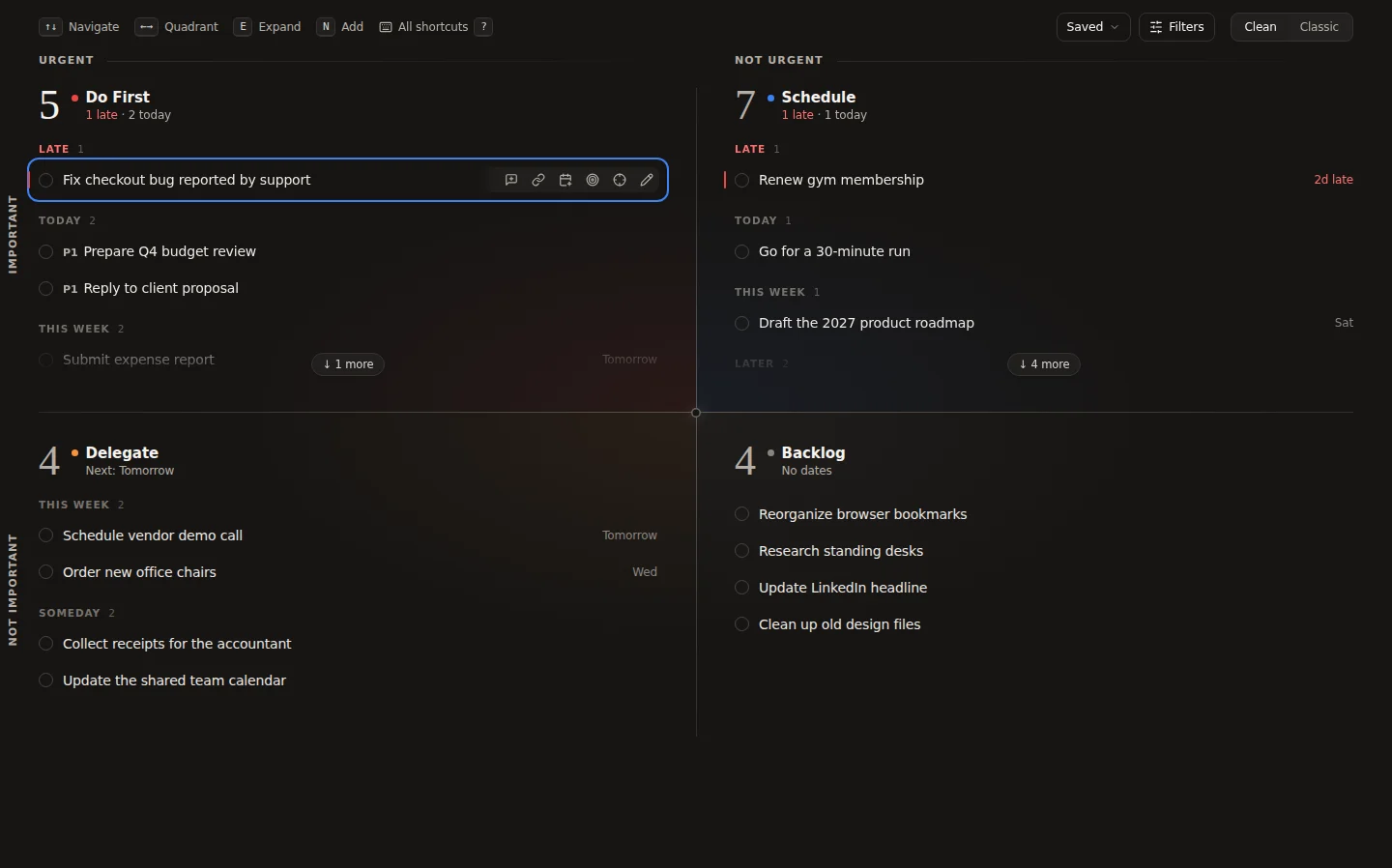
The five steps
Connect your Todoist account
Create an account, click Connect with Todoist and approve access on Todoist’s own authorisation page. Your active tasks load into the matrix.
Sort your tasks into quadrants
Open Categorize and press 1, 2, 3 or 4 for Do First, Schedule, Delegate or Backlog. Each choice is saved to the task in Todoist as a label.
Plan the day with the daily review
Each morning, clear what carried over from yesterday, then pick up to three tasks for Today’s focus.
Work one task at a time
Select a task and press Enter to open Single Task Focus, with a Pomodoro timer, notes and ambient sounds.
Prune once a week
Open Delegate and Backlog, delete what no longer matters, promote what has become important and give Schedule tasks a date.
1. Connect your Todoist account
- Open eisenhowertodoist.com and create an account with email and password, or sign in with Google.
- Click Connect with Todoist. You are sent to Todoist’s own authorisation page (OAuth), where you approve access. You never give the app your Todoist password.
- After you approve, you return to the app and your active Todoist tasks load.
New accounts start with a 7-day free trial with full access and no credit card required. After that it is $4.99 per month, or $19.90 once for lifetime access. See pricing in the FAQ.
2. Quadrants are ordinary Todoist labels
The app does not keep a separate copy of your priorities. A task’s quadrant is a Todoist label on the task itself:
| Quadrant | Meaning | Todoist label |
|---|---|---|
| Do First | Urgent and important | do |
| Schedule | Important, not urgent | schedule |
| Delegate | Urgent, not important | delegate |
| Backlog | Neither urgent nor important | backlog |
- A task has one quadrant at a time. Moving it replaces the old quadrant label; your other labels are left alone.
- Label matching ignores case, so a task you label
@Doin Todoist shows up in Do First too. - Because the labels live in Todoist, the sorting is visible in the Todoist apps as well, and you can use the labels in Todoist, for example in a filter with the query
@do. - Tasks without one of these labels are not in a quadrant yet. The Categorize button in the header shows how many there are.
3. Sort your tasks into quadrants
Click Categorize to go through unsorted tasks one at a time. For each task press 1 Do First, 2 Schedule, 3 Delegate or 4 Backlog; ← goes back and → skips. The due date and priority are shown so you can decide quickly. Recategorize lets you re-sort tasks that already have a quadrant.
On the matrix itself, select a task and press 1–4 to move it (with Undo), or Ctrl/⌘ + click several tasks and move them together. N adds a new task straight into the quadrant you are in.
There are two layouts. Clean (the default) is a keyboard-friendly list per quadrant; Classic is the traditional grid of four cards. Press V to switch, and ? in the Clean view for the full list of keyboard shortcuts.
Turn on Auto-prioritize in Settings and once a night tasks due within a number of days you choose move into Do First. You can also include tasks due today and overdue tasks.
4. Your daily workflow
Morning: the daily review
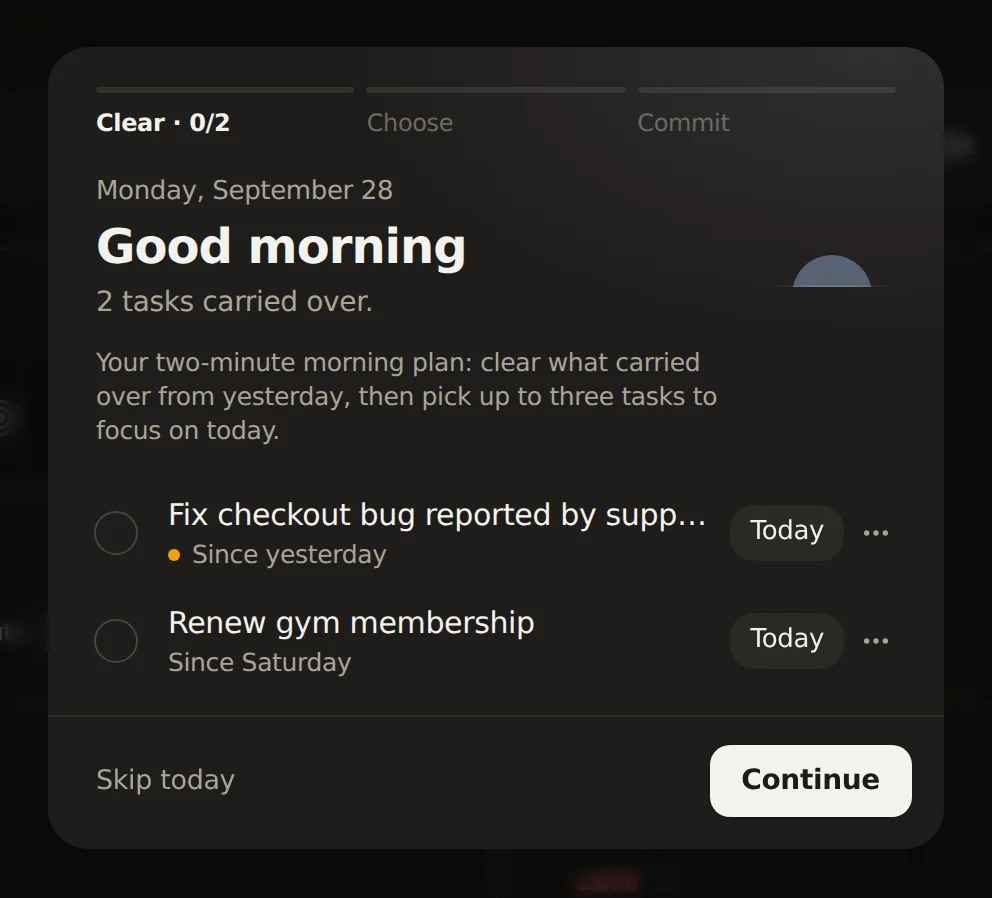
The daily review is a short morning plan in three steps: Clear, Choose, Commit. First you clear what carried over: for each overdue task you can complete it, move it to today, move it to another quadrant, or skip it for now. Then you choose up to three tasks for today from Do First and Schedule. The app marks a few as “Suggested” using a plain rule (due today first, then Do First, then Todoist priority); the choice is yours. It opens by itself once a day, starting the day after you sign up, and the Daily Review button in the header opens it any time.
During the day: Today’s focus
The tasks you picked appear in a Today’s focus panel above the matrix, numbered in the order you chose them, with their quadrant, due date, priority and a progress ring. Completing one there completes it in Todoist.
Deep work: Single Task Focus and the Pomodoro cycle
Select a task and press Enter to open it in Single Task Focus: one task on screen, and the rest of your matrix (under the current filter) waiting in a queue from Do First to Backlog, with today’s focus tasks first. From there you can:
- run a Pomodoro cycle: Classic (25 min focus, 5 min break, 15 min long break), Deep (50/10/20), Light (15/3/10) or your own lengths;
- play an ambient sound: white, pink or brown noise, rain, ocean, stream, wind, fireplace or forest;
- write a note for the task, which is saved to the Todoist task as a comment;
- complete the task with Space; the next one slides in and U undoes for five seconds.
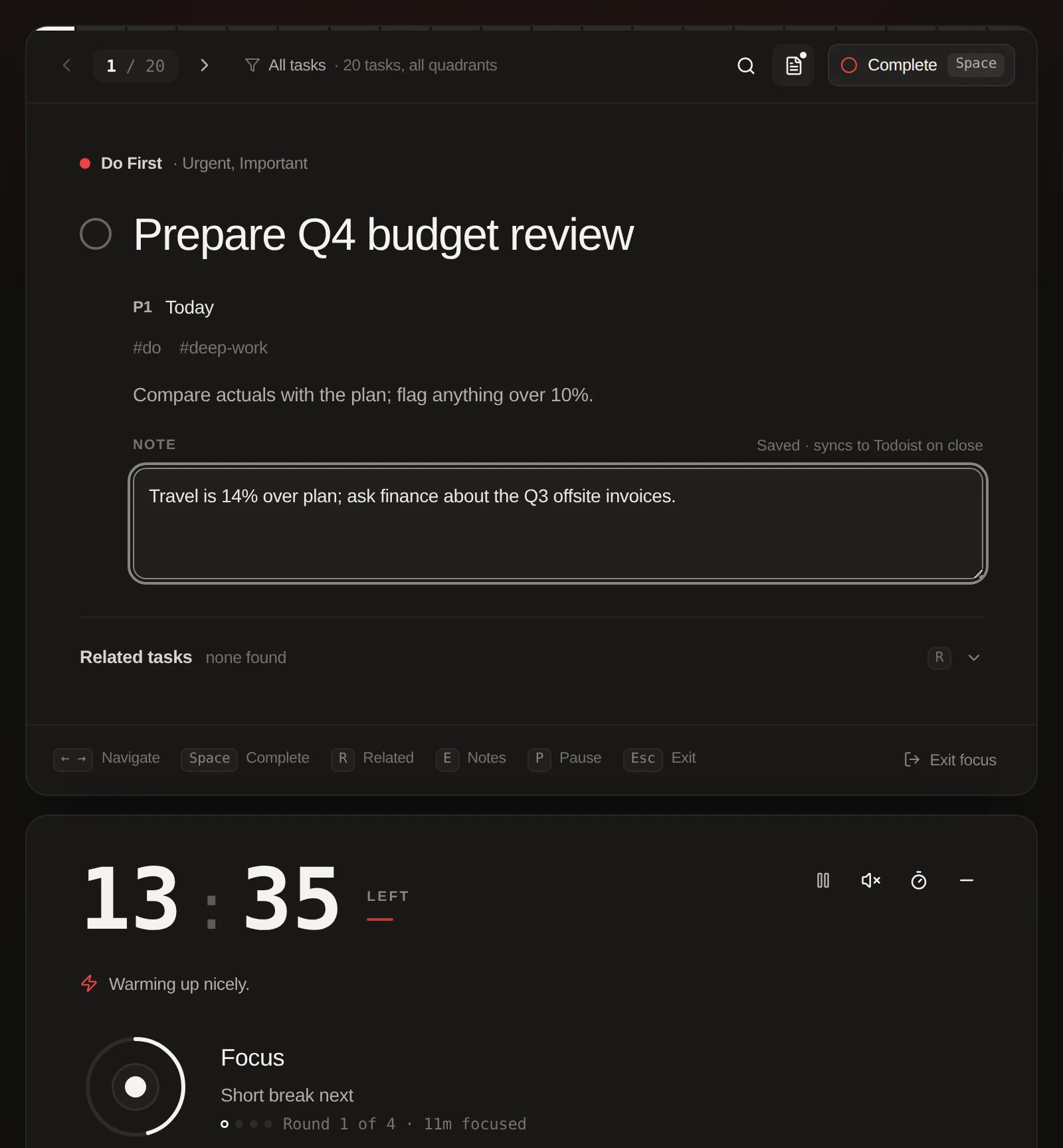
Focus time is recorded. The Statistics page shows focus time, deep focus (stretches of 25 minutes or more without a pause), sessions, tasks completed in focus and an optional daily goal. See focus statistics.
5. Weekly pruning
Once a week, open the Delegate and Backlog quadrants. Delete what no longer matters, promote what has become important, and check that Schedule tasks have dates. Filters by project, label, priority and due date, your saved presets and your saved Todoist filters help you review one area at a time.
What changes in your Todoist account
Only what you do in the app, plus Auto-prioritize if you turn it on. Sorting a task adds or replaces its quadrant label. Completing, renaming, setting due dates or deadlines, adding tasks and writing comments or focus notes are written to Todoist as the matching Todoist changes. Auto-prioritize moves tasks into Do First by changing the same label. Nothing is imported or duplicated. If you stop using the app, the quadrant labels simply stay on your tasks. The FAQ covers what data the app stores and how to disconnect.